
The secrets to MATLAB efficiency include efficient debugging, project management, and shortcut learning. Keyboard shortcuts that save time include F5 to run scripts and Ctrl+Shift+F to find files. MATLAB’s debugger makes it easier to find. And fix problems by enabling the setting of breakpoints and real-time monitoring of variable changes. By organizing scripts, functions, and data in hierarchical folders with clear naming guidelines. Collaboration-friendly projects are guaranteed and confusion is prevented.
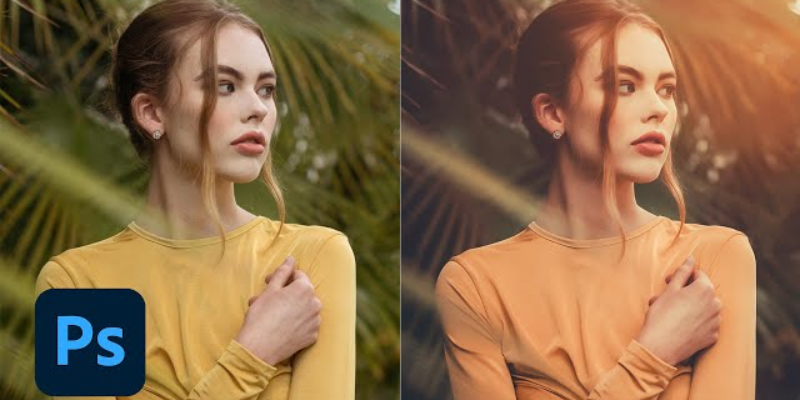
You may greatly increase your productivity and creativity by learning how to use the necessary tools, navigate the workspace, and apply efficient editing approaches. This tutorial will walk you through all of Photoshop CC’s main features. From simple modifications to sophisticated editing procedures, and offer helpful advice to make your workflow run more smoothly. By the time it’s all over, you’ll be confident enough to use professional picture editing to realize your vision. FITA Academy’s Photoshop training equips students with practical photo editing, graphic design. And digital imaging skills required to excel in creative roles.
Understanding the Photoshop CC Interface and Workspace
Photoshop CC’s interface may seem complicated when you first launch it, but mastering its design is essential to effective editing. All essential commands are located in the Menu Bar at the top, while the Options Bar varies according to the tool that is selected. Important editing tools including the Move Tool, Crop Tool, Brush Tool, and Healing Brush are easily accessible through the Tools Panel on the left. Layers, attributes, and adjustments are found in the Panels area on the right; these are essential for managing and organizing modifications.
You can organize panels and toolbars to fit your workflow by customizing your workspace in Photoshop. Additionally. You may rapidly access pertinent tools by switching between pre-set workspaces, such as Photography or Graphic Design. Understanding your workspace and its elements helps you avoid misunderstanding, expedite editing, and make sure you have all the tools you need on hand.
Setting Up Photoshop CC Preferences for Efficient Workflow
You may greatly increase your editing productivity by customizing Photoshop’s settings. For quicker rendering, start by modifying Performance Settings under Preferences, allocating more RAM, and turning on GPU acceleration. Make sure Photoshop has enough virtual memory by setting up Scratch Disks, especially when dealing with big files. For comfort during extended sessions, configure your interface by selecting a color scheme, modifying font sizes, and turning on UI scaling. Transform your creativity with Photoshop Classes in Chennai, where you’ll master photo editing. Layer management, color correction, visual effects, typography integration, and real-world design projects.
You may greatly increase your editing productivity by customizing Photoshop’s settings. For quicker rendering, start by modifying Performance Settings under Preferences, allocating more RAM, and turning on GPU acceleration. Make sure Photoshop has enough virtual memory by setting up Scratch Disks, especially when dealing with big files. For comfort during extended sessions, configure your interface by selecting a color scheme, modifying font sizes, and turning on UI scaling.
Basic Photo Editing: Cropping, Color Correction, and Retouching
Before using more complex effects, you can make sure your images look professional by starting with basic changes. Using tools like the Crop Tool or the Perspective Crop Tool, cropping enables you to align topics, change composition, and eliminate distractions. Maintaining natural tones requires color correction; to manage brightness, contrast. And color vibrancy, employ adjustments like Levels, Curves, and Hue/Saturation.
The Spot Healing Brush, Clone Stamp, and Patch Tool are examples of retouching tools that eliminate dust, imperfections, and undesired items. Non-destructive editing is made possible by applying modifications on Adjustment Layers rather than directly on the image, which maintains flexibility. Check your modifications often by zooming in and out to make sure the colors look natural and the details stay sharp. Gaining proficiency in these fundamentals provides a solid basis for more complex Photoshop methods, giving your images a clean and professional look.
Exploring Layers, Masks, and Adjustment Layers
Photoshop’s value lies in its layers, which let you keep flexibility and isolate modifications. Without influencing other levels, each layer functions as a separate sheet on which you may make changes, add objects, or write text. With Layer Masks, you can precisely control where modifications appear, allowing for selective adjustments or smooth blending. Non-destructive adjustments can be made by using Adjustment Layers for brightness, contrast, color balance, or curves. Learning Photoshop at a B School in Chennai can enhance your creative projects’ quality and marketability by enabling advanced photo editing. Professional image retouching, and visually compelling design solutions for both digital and print media.
so you may change the parameters at any moment without changing the original picture. Workflow is improved, particularly in big projects, by grouping relevant updates and organizing layers with descriptive titles. Gaining proficiency with layers and masks allows you to move from simple changes to compositions at the professional level. These tools provide you complete control over every aspect of your image while enabling you to experiment artistically.
Applying Creative Effects and Filters
A plethora of artistic effects and filters are available in Photoshop CC to improve your images. While sharpening filters like Unsharp Mask draw attention to details, use the Blur Gallery to provide depth or soften backgrounds. To mimic professional picture processing, experiment with Camera Raw Filter for global tweaks like exposure, clarity, and vibrancy. Layer blending modes allow you to artistically combine colors, textures, and effects; for instance, Overlay or Soft Light can improve mood and contrast.
Dimension and impact are added by layer styles including Drop Shadow, Gradient Overlay, and Stroke. Subtlety is crucial since employing too many filters might make your photos look artificial, even though creative effects can improve them. By combining creativity and accuracy to create visually arresting photos. You may keep complete control by practicing these effects in conjunction with adjustment layers and masks.
Working With Text, Shapes, and Graphic Elements
Photoshop may be used for graphic design in addition to photo editing when text and shapes are integrated. Utilize the Type Tool to alter fonts, colors, and effects as well as add captions, titles, or watermarks. Rectangles, circles, and custom paths can be made with Shape Tools and used as overlays, backdrops, or design elements. You may keep editing flexibility by combining text and shapes on different layers.
When resizing or changing elements, make use of Smart Objects to maintain quality. These elements are very helpful when producing promotional photos, social media graphics, or composite designs that combine typography and photography. Your editing abilities become more versatile when you know how to smoothly incorporate. These components into your photos, enabling you to produce visually striking images that go beyond simple photo retouching. These are some features of Photoshop.
Integrating Photoshop with Other Tools and Plugins
Numerous plugins and external integrations are supported by Photoshop CC, which might improve your editing skills. Plugins such as Nik Collection, Portraiture, or Luminar enhance Photoshop’s built-in capabilities. With specialized filters, AI-powered retouching, and distinctive effects. Additionally, you may automatically sync raw image modifications with Adobe Lightroom to optimize efficiency.
Versatility is increased with external file support, such as importing 3D models from Cinema 4D or vector artwork from Illustrator. Time is saved, more creative options are introduced, and more professional outputs are possible when these linkages are used. By utilizing plugins and other tools, you can make Photoshop CC. A focal point of your creative process rather than a stand-alone application, which maximizes productivity and artistic potential.
Optimizing Workflow With Shortcuts and Project Organization
When managing numerous images or big projects, efficiency is essential. Keyboard shortcuts, such as Ctrl+J to duplicate a layer, Ctrl+Shift+N to create a new layer, and Ctrl+Alt+Z to go back in time, significantly cut down on the amount of time spent traversing menus. For clarity, arrange projects using layer groups and color-coded layers. During intricate adjustments, misunderstanding is avoided by labeling layers consistently. To keep track of changes without losing original files, make regular backups and employ versioning.
Non-destructive scaling is made possible via Smart Objects, and linked files make updates between projects easier. Additionally, automating repeated adjustments like making basic color fixes or resizing photos for web use is made possible by implementing custom actions. Using these workflow techniques increases output, lowers errors, and guarantees that your editing process is scalable and professional.
Mastering Photoshop CC for Effective Photo Editing
Effective photo editing in Photoshop CC requires a combination of technical expertise, artistic ability, and productive workflow techniques. You can improve your photos to a professional level by learning the UI, adjusting options, becoming proficient with layers and masks, and using both simple and creative adjustments. Your creative options are further expanded by using text, shapes, plugins, and outside tools. Your editing process will be seamless, effective, and repeatable if you implement workflow techniques, use shortcuts, and keep your projects structured.
You can approach tasks with accuracy and creative vision by developing your confidence via regular practice and research of Photoshop’s many features. With these abilities, Photoshop CC becomes more than just a photo editor; it becomes a flexible creative tool that can transform commonplace photographs into eye-catching pieces of art. Although mastery takes time, the outcomes are well worth the effort.